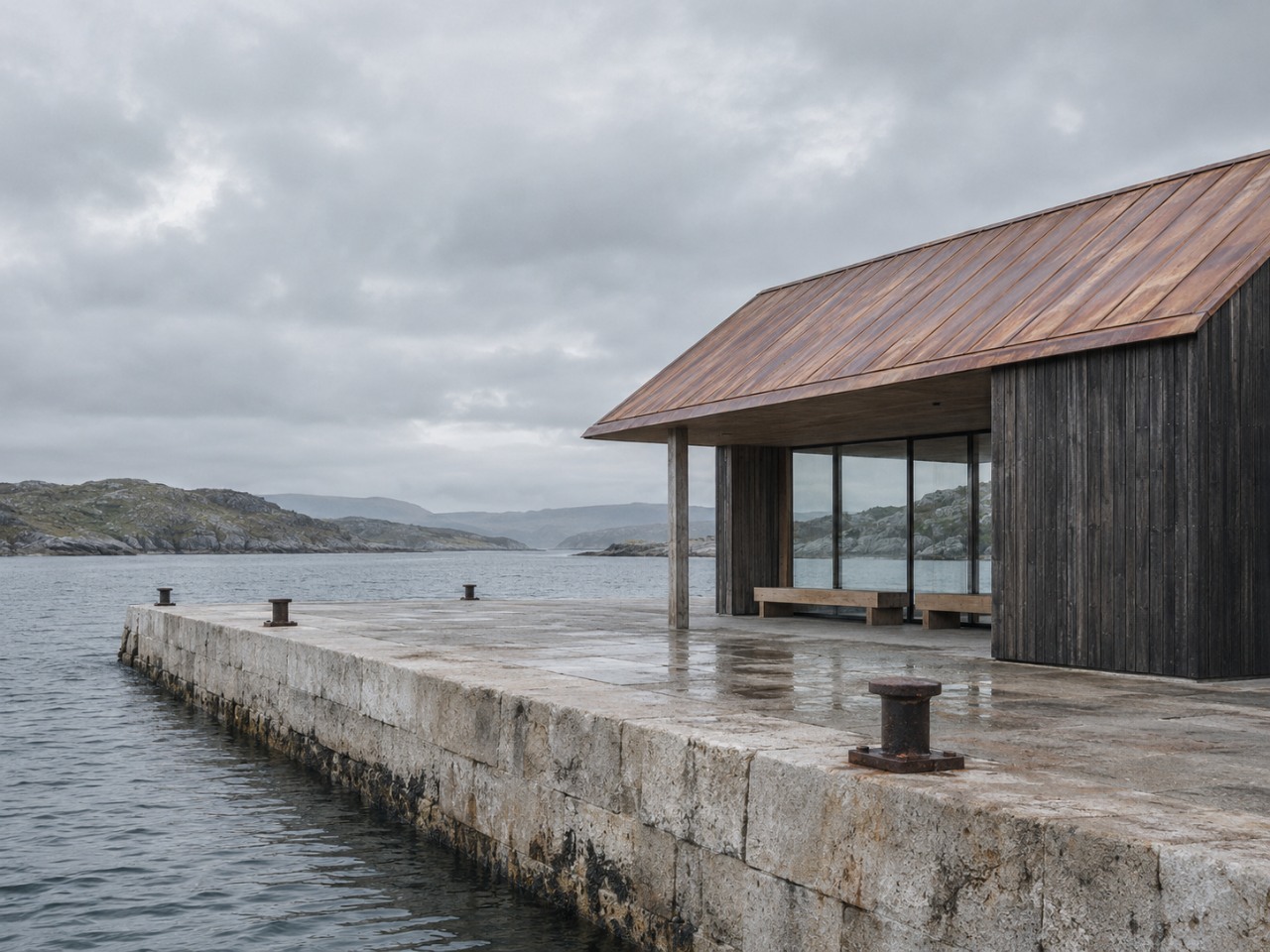
Turn an overcast harbor scene into five measured swatches and a CSS file that a developer can use.
12 minutes · Palette Studio
Open image extractorProject files
1. Load the field photograph
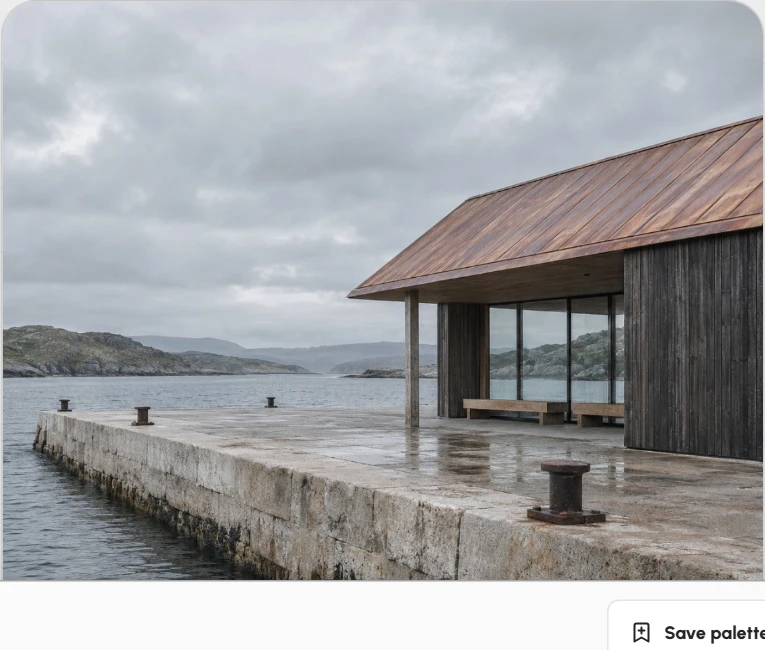
Download the harbor photograph above. In Palette Studio, open Extract image, choose Select image, and load the JPG. Keep the full frame for this pass. The large sky and paving explain why pale tones dominate the result.
2. Extract five colors
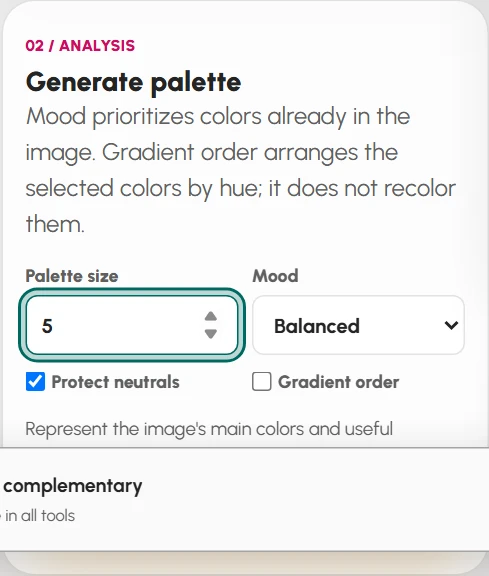
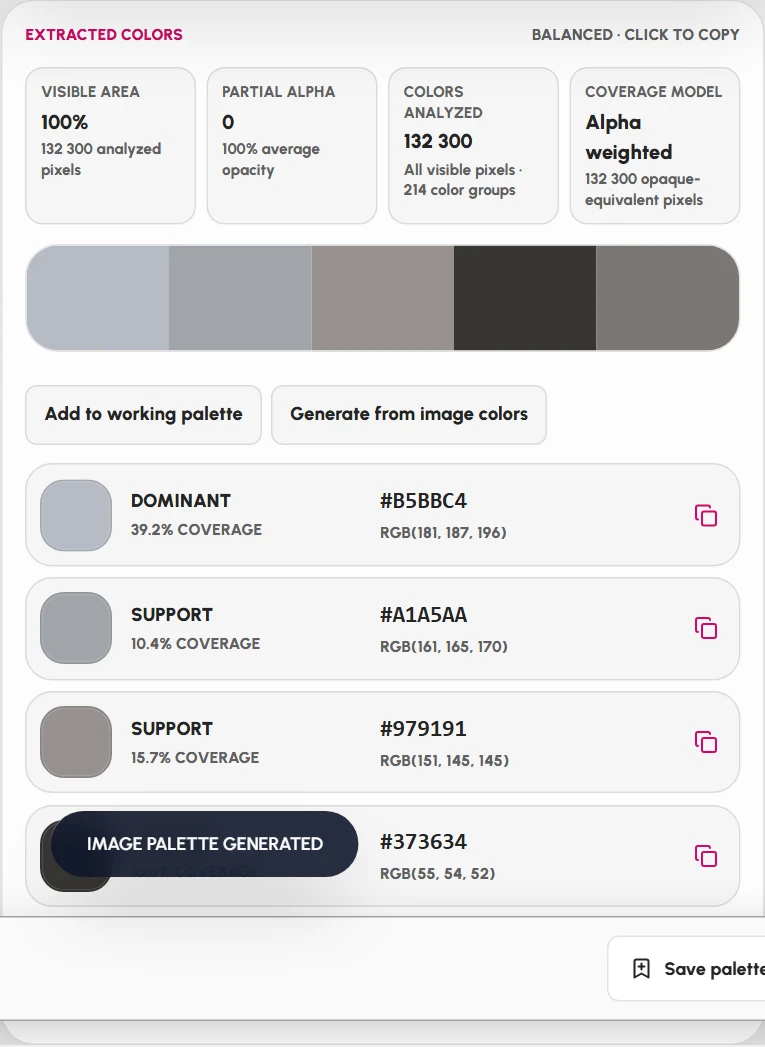
Set Palette size to 5 and choose Generate palette. Leave the other controls at their defaults for the first measurement. Read the coverage percentages alongside the hex codes. A small area of roof can be important even when it contributes very few pixels.
3. Choose surface and type colors
Find the lightest large swatch and the darkest small one. In this extraction, #B5BBC4 covers about 39% and #373634 comes from the dark end. Try the first as a background and the second for type. Inspect a real line of text at its intended size before accepting the pair.
4. Hand off the actual values
In Export extracted palette, choose CSS. Open the downloaded file in a text editor and compare its hex values with the on-screen swatches. Add a note for your collaborator identifying the background and text colors you chose.
A five-color CSS file and one tested foreground/background pairing.